We serve the unique learners of 12 member school districts in the West Metro. Our trauma-responsive and healing-centered schools support the academic, emotional, and behavioral needs of students to thrive in school and life.
Contact Us
News

Your family may qualify to receive money to help cover food costs for Summer 2024
Your family may qualify to receive money to help cover food costs for Summer 2024 (known as Summer EBT benefits). Qualifying students will receive $120 in food benefits. A student is eligible for Summer EBT benefits if: Their school participated in the National School Lunch Program during School Year 2023-24. ... Read more
Your family may qualify to receive money to help cover food costs for Summer 2024 (known as Summer EBT benefits). Qualifying students will receive $120 in food benefits. A student is eligible for Summer EBT benefits if: Their school participated in the National School Lunch Program during School Year 2023-24. ... Read more

2024-2025 School Year Calendar and New Strategic Plan
Over the past year, we engaged with our incredible students, families/caregivers, staff, and community partners to envision Intermediate District 287’s trajectory, aiming for a vibrant and inclusive atmosphere by 2029. Last night, the School Board approved the 2024-2025 School Year Calendar and 2024-2029 Strategic Plan. Please review the calendar carefully ... Read more
Over the past year, we engaged with our incredible students, families/caregivers, staff, and community partners to envision Intermediate District 287’s trajectory, aiming for a vibrant and inclusive atmosphere by 2029. Last night, the School Board approved the 2024-2025 School Year Calendar and 2024-2029 Strategic Plan. Please review the calendar carefully ... Read more
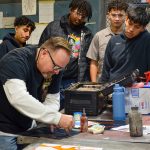
Well-renowned custom painter visits 287 programs at HTC
Students in the Auto Body pathways program at Hennepin Technical College received a visit from Mike Iverson for their custom paint unit. Iverson is a well-renowned custom painter of signs, vehicles, and even airplanes. "We’ve been looking forward to today since last week when we first heard about it,” said Kenzie, a gateway to college stude ... Read more
Students in the Auto Body pathways program at Hennepin Technical College received a visit from Mike Iverson for their custom paint unit. Iverson is a well-renowned custom painter of signs, vehicles, and even airplanes. "We’ve been looking forward to today since last week when we first heard about it,” said Kenzie, a gateway to college stude ... Read more

Texas Roadhouse supports HTC Programs at District 287
We are excited to announce a fantastic fundraising opportunity on November 14 that involves dining at Texas Roadhouse in Shakopee. Present the District 287 flyer when paying your bill and 20% of your total food purchase will support the District 287 programs at Hennepin Technical College. So, gather your friends and family for a tasty meal, and make a difference ... Read more
We are excited to announce a fantastic fundraising opportunity on November 14 that involves dining at Texas Roadhouse in Shakopee. Present the District 287 flyer when paying your bill and 20% of your total food purchase will support the District 287 programs at Hennepin Technical College. So, gather your friends and family for a tasty meal, and make a difference ... Read more

Get in Touch
We’d love to hear from you. If you have a suggestion, idea, or anything you’d like to tell us, please take a moment to let us know.